
要素属性検証では、画面上の要素が持つ属性値を検証できます。
Validate Element Attribute ステップの追加
Validate Element Attribute を追加するには:
- 検証を追加したい位置の (矢印記号) にカーソルを合わせます。
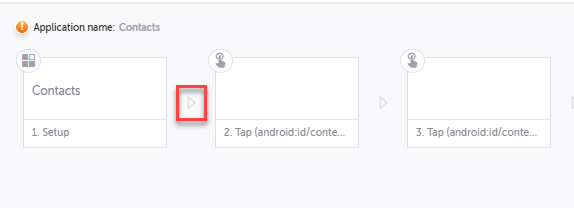
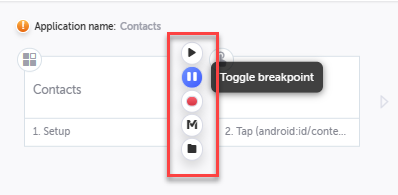
アクションのオプションが表示されます。
- Toggle breakpoint ボタンをクリックします。
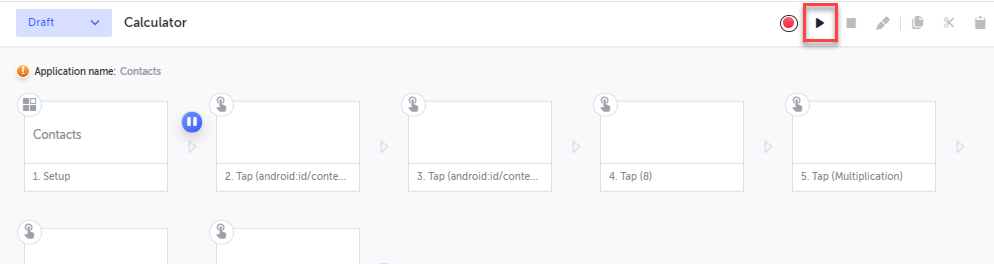
- Run test ボタンをクリックし、ブレークポイントまでテストを実行します。
- 再び (矢印記号) にカーソルを合わせ、「M」(Testim 定義済みステップ)をクリックします。
Predefined steps メニューが開きます。
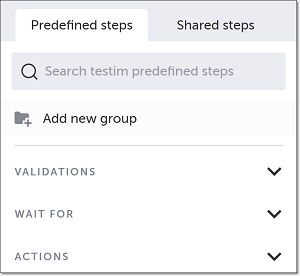
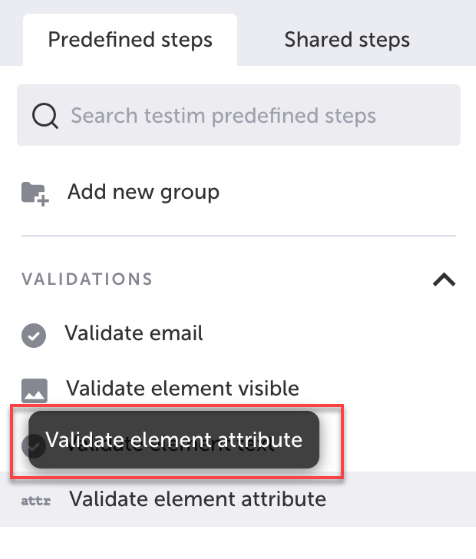
- Validations をクリックします。Validations メニューが展開されます。メニューをスクロールして Validate element attribute を選択します。
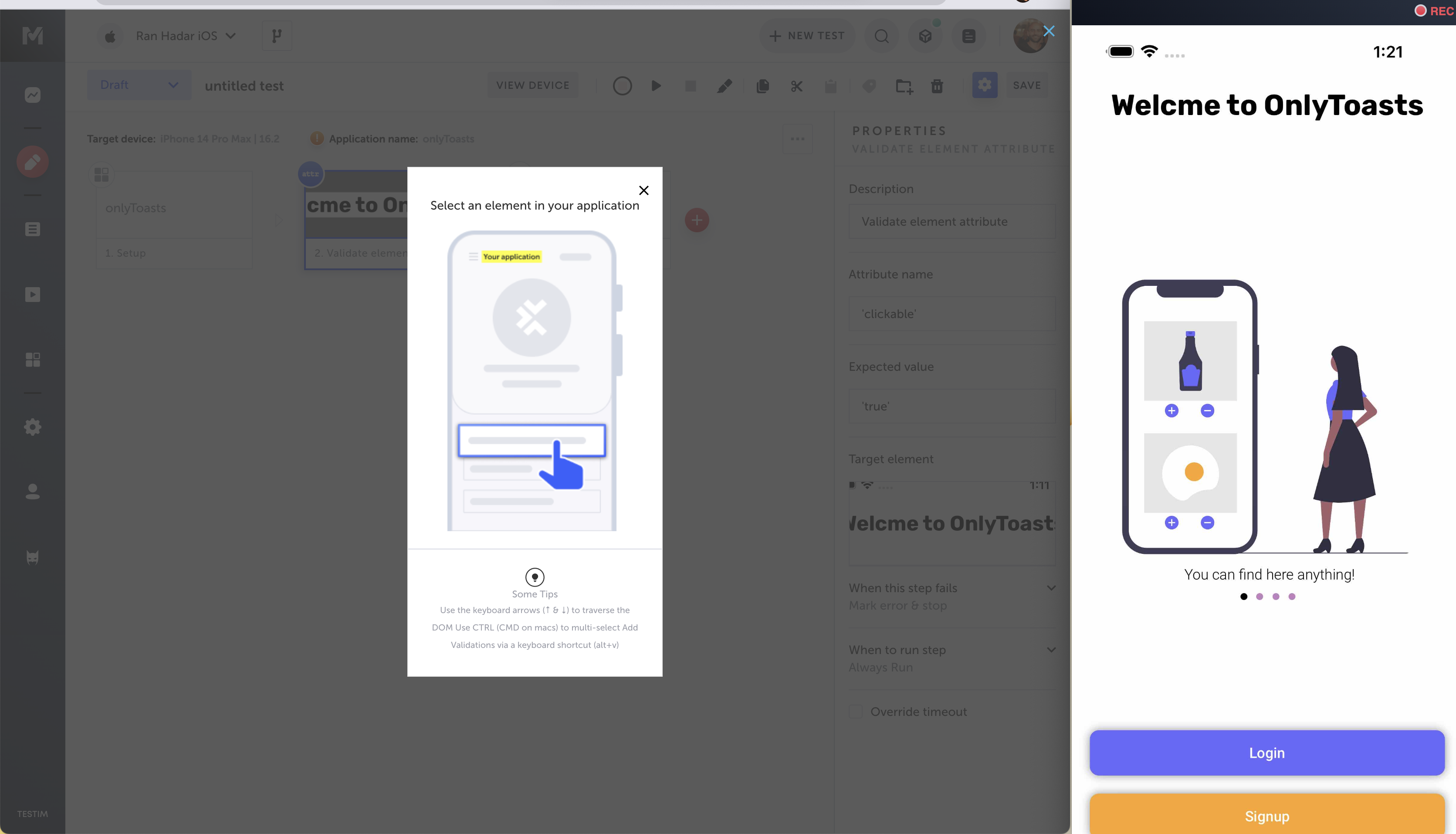
- AUT ウィンドウで検証対象の要素を選択します。検証の設定には要素の属性名が必要です。
- Element Attribute Validation フォームが表示されます。
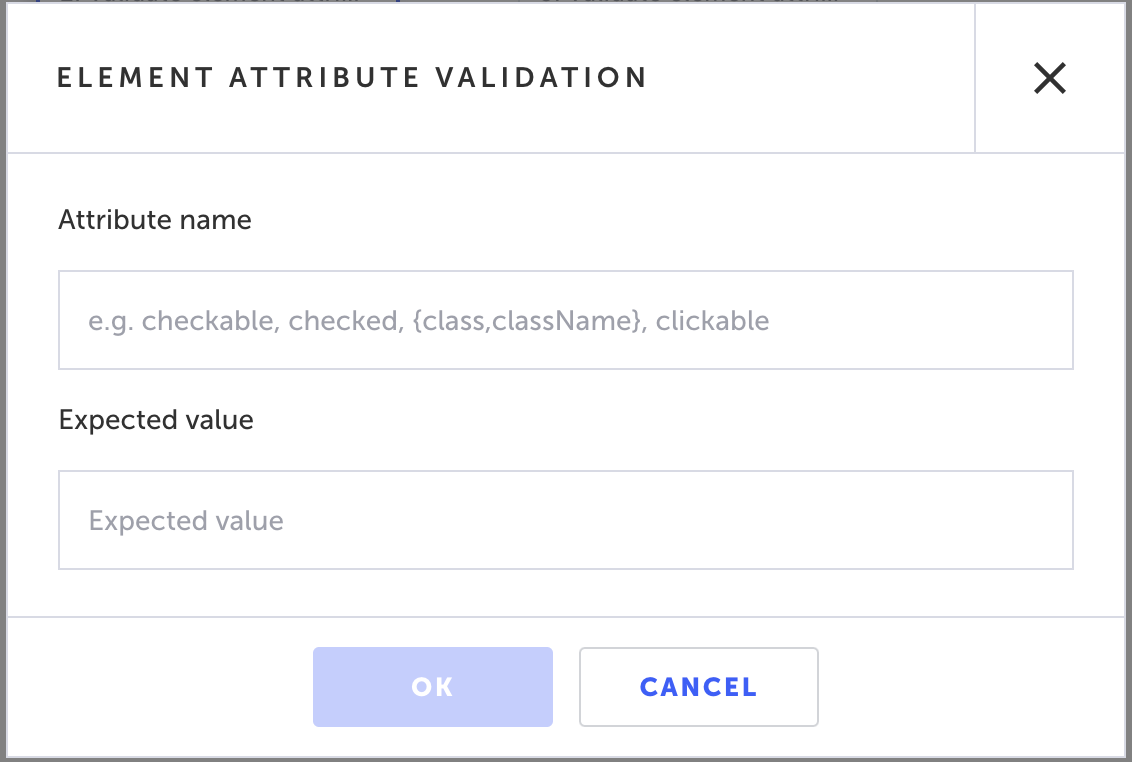
- Attribute name に検証したい属性名を入力します(例:
checkable、checked、className、clickable)。利用可能な属性の一覧は List of possible attributes を参照してください。 - Expected value に期待値を入力します(例:
true)。
Testim はテスト実行時に、選択した要素の属性が期待値を持つかどうかを検証します。
- OK をクリックします。Editor に「Validate element attribute」ステップが追加され、ステップ内に選択要素のサムネイルが表示されます。
- 検証ステップの後にある Toggle Breakpoint ボタンをクリックしてブレークポイントを削除します。
Validate element attribute ステップの修正
選択要素を変更したい場合は、ステップを削除して録り直す必要はありません。別の要素に再割り当てできます。あるいは、要素を選び直さずに Attribute name / Expected value の値だけを編集することも可能です。検証ステップで選択要素を再割り当てするには:
- 要素を再割り当てしたいステップの左側にカーソルを合わせ、Toggle breakpoint ボタンをクリックします。
- Run test ボタンをクリックし、ブレークポイントまでテストを実行します。
- 要素を再割り当てしたいステップにカーソルを合わせ、Show Properties アイコンをクリックします。
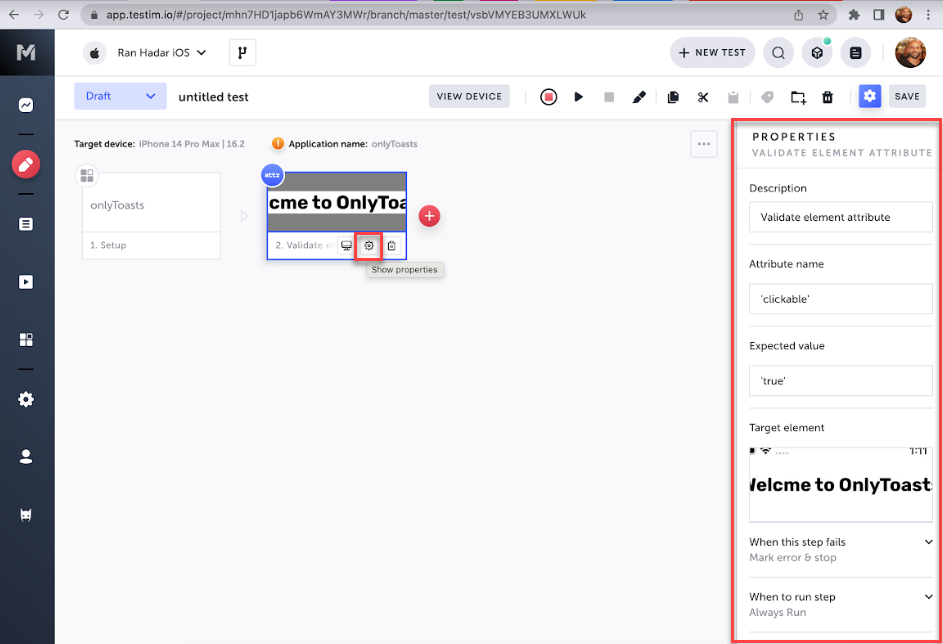
右側に Properties パネルが表示されます。
- Target element サムネイルにカーソルを合わせてオプションを表示し、Reassign をクリックします。
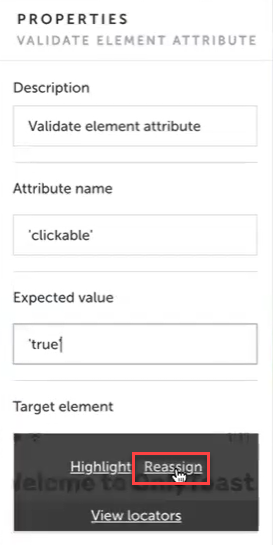
- AUT ウィンドウで、新しく選択したい要素を特定しクリックします。
選択された要素が Properties パネルの Target element ボックスに表示されます。 - Attribute name に新しい要素の属性名を入力します。
- Expected value に新しい属性の期待値を入力します。
- 要素を再割り当てしたステップの左側にある Toggle Breakpoint ボタンをクリックしてブレークポイントを削除します。
元の要素のプロパティを編集するには:
- 要素を再割り当てしたいステップにカーソルを合わせ、Show Properties アイコンをクリックします。
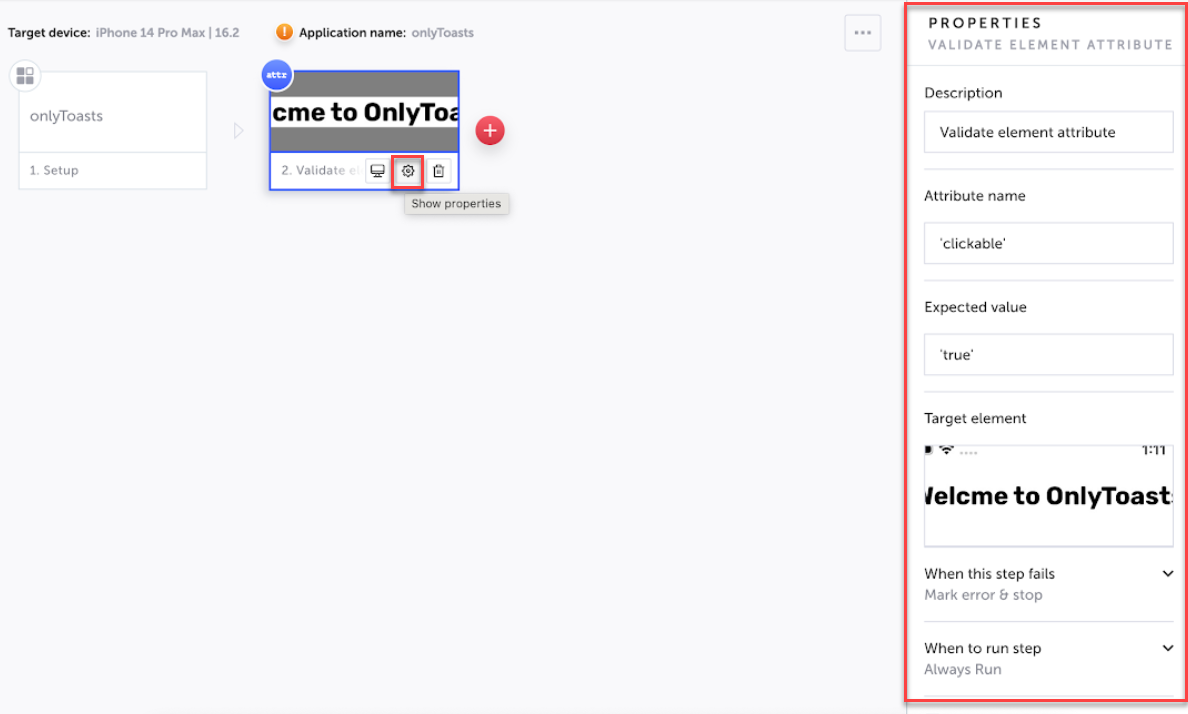
右側に Properties パネルが表示されます。
- Properties パネルの Attribute name フィールドに、要素の新しい属性名を入力します。
- Properties パネルの Expected value フィールドに、属性の新しい期待値を入力します。
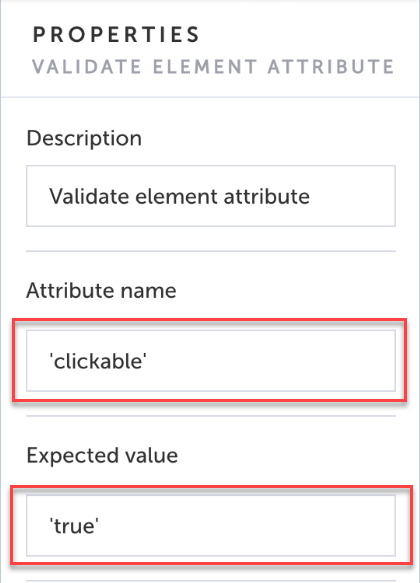
利用可能な属性一覧
iOS 属性(Appium 使用時)
- checkable
- checked
- {class,className}
- clickable {content-desc,contentDescription}
- enabled
- focusable
- focused
- {long-clickable,longClickable}
- package
- password
- {resource-id,resourceId}
- scrollable
- selection-start
- selection-end
- selected
- {text,name}
- hint
- extras
- bounds
- displayed
- contentSize
Android 属性
- UID
- accessibilityContainer
- accessible
- enabled
- frame
- index
- label
- name
- rect
- selected
- type
- value
- visible
- wdAccessibilityContainer
- wdAccessible
- wdEnabled
- wdFrame
- wdIndex
- wdLabel
- wdName
- wdRect
- wdSelected
- wdType
- wdUID
- wdValue
- wdVisible